
We’re pleased to announce that version 4.4.32 of our extension introduces convenient keyboard shortcuts for your most-used features.
Default Shortcuts
| Function | Shortcuts |
| Capture > Visible Part | Alt+Shift+V |
| Capture > Full Page | Alt+Shift+F |
| Capture > Selected Area | Alt+Shift+S |
| Start Recording Desktop | Alt+Shift+R |
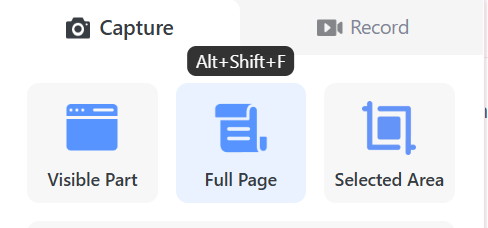
If a default shortcut combination doesn’t appear when hovering over an option in our extension’s pop-up menu, it likely conflicts with another extension or application. Please refer to the ‘Managing Conflicts’ section below to resolve this issue.
🎉Customizing Shortcuts
You can customize these shortcuts in two ways:
1. Through the extension’s Options menu.

Click “Set shortcuts” in Options.

2. Directly open your browser’s shortcuts page:
1) Chrome URL: chrome://extensions/shortcuts
2) Edge URL: edge://extensions/shortcuts
Available Functions for Custom Shortcuts
| Function | Default |
| Activate the extension | Not set |
| Capture > Visible Part | Alt+Shift+V |
| Capture > Full Page | Alt+Shift+F |
| Capture > Selected Area | Alt+Shift+S |
| Record > Desktop | Alt+Shift+R |
| Record > This Tab | Not set |
| Record > Camera Only | Not set |
| Record > Custom (This Tab) | Not set |
| Pause/Resume recording | Not set |
| Stop recording | Not set |
| Annotate Local & Clipboard Image | Not set |
🎉Benefits:
1. You can boost your productivity with custom 2-key shortcuts like Alt+R. Easily customize or change any default shortcuts to suit your preferences.
2. Record or capture any desired content in just one step. For example, you can easily record courses, movies, songs, or computer games using our ‘Record > This Tab’ feature. Previously, you had to click our extension first, select Record, choose This Tab, and click Start Recording. Now, simply use keyboard shortcuts like Alt+T or Alt+Shift+T to instantly start recording with a single action.
3. No need to use the previous shortcut to activate our extension first—you can now capture or record directly in your desired mode.
4. By default, the shortcuts are effective only in the browser. To let the shortcuts work outside the browser, select “Global” from the dropdown menu. For example, if you are using another browser or using a desktop app, you can still initiate, pause, and stop a recording using the shortcuts even though you are not using that browser.

If you previously used shortcuts such as Ctrl+Shift+S or Ctrl+Shift+E, you can restore your preferred combinations on the browser’s shortcuts page. If you cannot restore or change the shortcut, it’s likely already assigned to another extension in your profile. You’ll need to either modify that existing shortcut or choose a different combination for our extension. If you can set the shortcut, but it doesn’t work, please refer to the ‘Managing Conflicts’ section below.
Managing Conflicts
1. When the same shortcut is set as Global in another browser profile or a desktop app, the commands in that profile or app will take priority, causing the shortcut to appear non-functional in your current profile. To avoid conflicts, you can change the shortcut in your current profile, another browser profile, or the desktop app.
2. If shortcuts don’t automatically sync across different computers, even when using the same browser profile, you’ll need to manually set them on the new device or profile.
You may click here to check out the details.
3. If you want to record without opening a browser, but the Global mode shortcuts aren’t working, you can utilize the AwesomeScreenshot Desktop App for Windows or Mac and configure shortcuts within the app. Desktop app shortcuts take priority and aren’t limited by browser restrictions.
 Awesome Screenshot Blog
I love it! Thank you so much for your work. 🙂
LikeLike
Its the best extension.Ttruly. hatss off
LikeLike
bruh
LikeLike
6
LikeLike
Good! I also wish you could make more videos than just 20
LikeLike
Currently a user with the Free or Basic plan has the option to download some recordings from the first 20 recordings to a local computer. Once the user has downloaded these recordings, the user can delete them from our Cloud storage to keep the number of saved recordings within the 20-recording limit and continue recording for free. The duration for each recording that users with the Free or Basic plan can download and edit is up to 1 hour.
LikeLike
I know that, but I wish you could do more videos without cloud storage so you can just download videos one time
LikeLike
Good! I also wish you could have more than just 20 videos, so I can edit my videos.
LikeLike
Definitely Awesome!! 🤙
LikeLike
Can you add the shortcuts for Mac users please? Thanks!
LikeLike
This feature applies to our Chrome extension on Mac as well.
In addition, now you can set and change shortcuts on our desktop app for Mac.
LikeLike
Muito bom… Obrigado!
LikeLike
Useful and convenient
LikeLike
Thanks team!
Are you plannig add transcript feature to the recorded videos ?
LikeLike
Video transcription is in our To-do list.
LikeLike
Cool
LikeLike
I’ve been using this recorder for several days and was looking for shortcuts. I completed my task with over 50 hours of recordings, making many 15+ minute videos — all without this feature. And now you’re telling me you released it the day after I finished everything?
LikeLike
In the past, we had shortcuts for the most frequently used capturing functions and recording Desktop. Now users can set shortcuts for more options.
LikeLike
It would be cool if I can record myself on screen and then what’s on my computer screen at the same time.
LikeLike
To only record yourself, you can choose Record > Camera. If you want to embed your face on the screen, you can enable ‘Camera’ before recording Desktop or recording a tab.
Related instructions: https://support.awesomescreenshot.com/hc/en-us/articles/22096529649945-How-to-embed-my-face-into-a-recording-video-using-the-Awesomescreenshot-extension
LikeLiked by 1 person
I hope to record myself on screen plus record what is on my computer screen at the same time.
LikeLike
real tysm
LikeLike
You guys are awesome! My favourite extension 🙂
LikeLike
Very helpful and perfectly working extension.. simply Awesome 🙂 Thank you
LikeLike
sensacional, parabéns pelo trabalho
LikeLike
Its Awesome
LikeLike
I miss the options that allow me to blur things out or underline/circle something I wanted to emphasize.
LikeLike
Please follow the instructions in the link below and set Skip Annotating to Never.
https://support.awesomescreenshot.com/hc/en-us/articles/19499716712473-How-to-set-the-Skip-Annotating-option
LikeLike
usefull shortcut
LikeLike
Got it. Thankyou.
LikeLike
its reallly awesome, good to use, easy to use, lot of features, thanks for providing us this addon.
LikeLike
Super sigma its goated
LikeLike
This article just needs a TL:DR section
LikeLike
Nice update I love it as it been upgraded
LikeLike
I miss the options that allow me to blur things out or underline/circle something I wanted to emphasize.
LikeLike
NIce and helpful
LikeLike
Nice and good
LikeLike
Bra-freaking-vo! Great quality of life improvement!
LikeLike
It is Ok
LikeLike
Thanks for the illustration
LikeLike
This extension is very helpful for taking screenshot and record screen. Thanks awesomescreenshot team
LikeLike
I am curious to know if your extension stores, copies, sends, shares, or retains any user data that is captured from screenshots in any form of information (such as text, images, or encrypted data). Could you please clarify your data handling practices regarding this?
LikeLike
If you save screenshots to Local (your computer), we do not save the screenshots. A screenshot is temporarily stored in your browser. If you close the screenshot result tab without downloading or copying it to your computer, the screenshot will be lost. You can set Auto-download in the Options of our browser extension to avoid this kind of data loss.
If you save screenshots to Cloud (AwesomeScreenshot.com), the screenshot will be saved on our server.
Related FAQ: https://support.awesomescreenshot.com/hc/en-us/articles/15556118596505-How-do-you-protect-my-personal-or-and-our-workspace-data
No, we do not make copies. You make copies and the copies are saved only in the clipboard of your own computer.
No, we do not transmit screenshots to anyone else.
No, we do not provide access to your screenshots to any third parties. You control access in the following ways:
– If you copy and paste the screenshot to another platform, you grant access from the users on that platform.
– If you share a screenshot via a shareable link on our website, recipients can access it via that link, which you can revoke anytime.
If you save screenshots to Local (your computer), we do not keep the screenshots. They are temporarily saved in your browser. If you close the screenshot result tab without downloading or copying it to your computer, the screenshot will be lost. You can set Auto-download in the Options of our browser extension to avoid this kind of data loss.
If you save screenshots to Cloud (AwesomeScreenshot.com), the screenshots will be kept on our server. If you delete the screenshot, it will be removed from our server permanently after a short retention period.
LikeLike
okay no prob
LikeLike
zor
LikeLike
Is send to Printer available for Awesome screenshot?
LikeLiked by 1 person
Yes, please click Print after the screenshot is captured to print it. Please turn off “Auto-download screenshots” in Options to find the Print option.
LikeLike
Sorry to say, i have to stop using awesome screenshot, it’s become unusable, for example screen a linkedin profile, annoting or marking is near impossible takes 10 seconds or more to draw a arrow let alone text.
I have attempted across multiple devices and browsers.
LikeLike
We tested what you reported and the annotation tools work well on our end:
https://www.awesomescreenshot.com/video/45381343?key=10c3d80f564cdf7e387d19a3f0420fcb
We also tested the annotation tools when saving screenshots to Cloud, and they also work well.
You may create a new browser profile in Chrome and only install our extension if you encounter Capture issues using the current Chrome profile. If the issue resolves, another extension in your previous browser profile may be conflicting with ours or there is a problem in that profile. If the issue persists on your end, please use the AwesomeScreenshot Desktop App for Windows or AwesomeScreenshot Desktop App for Mac to record the entire procedure and save the recording to Cloud. After recording the video, please share it with us via a shareable link. You may also save the recording to Local (your computer), download it to your computer, attach the video file to an email, and send the email to us for our detailed review. You may search “Welcome to Awesome Screenshot” in your registration email to find our email address.
LikeLike
There appears to be new troubles, it’s become almost unusable for some cases, for many screens when taking screenshot of whole desktop, it does not render anything, just shows a blank/black screen. I may be looking for a new screenshot resource
LikeLike
Thank you for reaching out about this. It will be fixed soon. Currently, if you capture Entire Screen & App Window, please save it to Local instead of Cloud. There is no issue under the Local mode.
LikeLike
how do we get in it .
and how fun can it be .
LikeLike
You can download and install our extension from the Chrome Web Store: Awesome Screen Recorder & Screenshot.
Our extension provides powerful tools for taking screenshots and recording your screen and/or camera.
For product presentations and tutorials, please visit our Support Center and/or our YouTube channel.
LikeLike
Thanks – this is exactly what I was looking for!
Screenshot shortcuts are accessed via ‘shortcuts’ as mentioned in article (missed it when was looking!)
LikeLike