
Awesome Screenshot launched a series of changes in the new version 4.4.24 to help you streamline your workflow.
1. Save Screenshots Directly to Your Computer, No Need to Manually Click “Download”.
Please enable “Auto-download screenshots” in Options of the Awesome Screenshot Chrome extension.
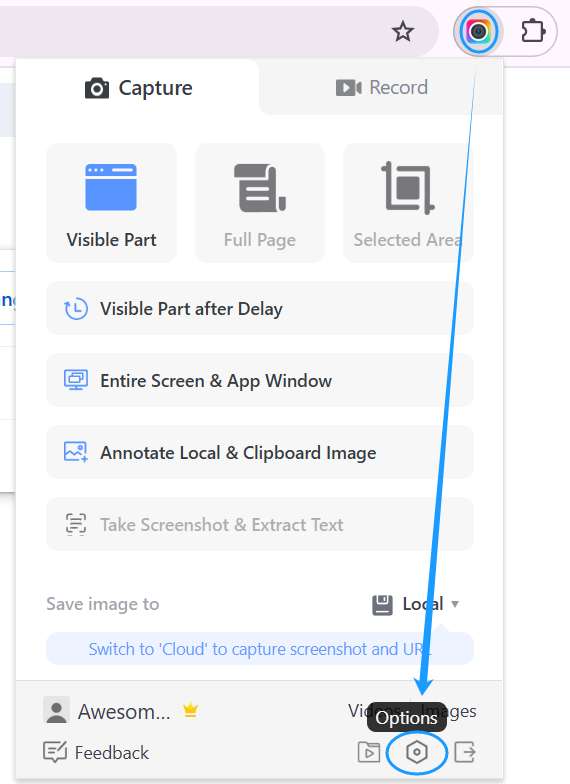
You can specify a subfolder within Downloads for saving screenshots. If not specified, screenshots will be saved to the Downloads folder. You’ll need to grant download management permissions when prompted. You can also save screenshots to your desired folder, which is not under Downloads.
The option of “Ask where to save each file before downloading” is enabled by default, allowing users to choose a different folder for screenshots instead of the Downloads folder or the specified default. To save screenshots to a designated folder more quickly, you can disable this option.

Video demonstration: https://www.youtube.com/watch?v=lZlbDZd5x-A
Related FAQ: Why disabling “Ask where to save each file before downloading” cannot work
2. Cloud Sharing Automation
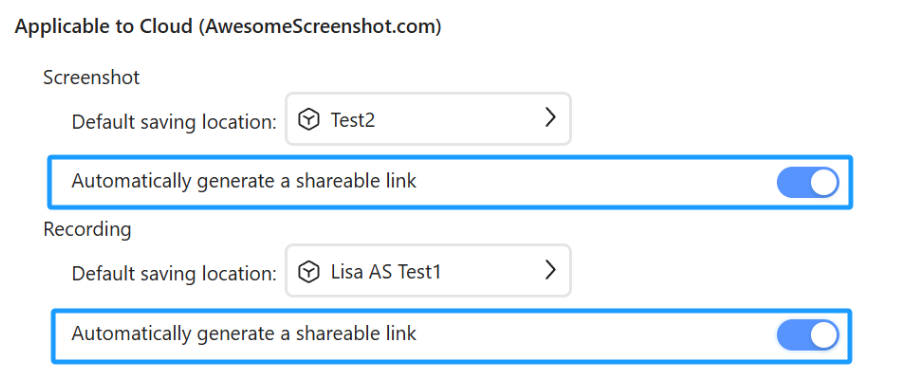
Enable “Automatically generate a shareable link” to instantly share your recordings and screenshots. You can also set a default storage location for items saved to AwesomeScreenshot.com cloud, eliminating the need to manually move them from My Items.
3. Quick Access Shortcuts
“I’m constantly using the ‘Annotate Local & Clipboard Image’ function and being able to access it with a keyboard shortcut would greatly improve my workflow.”
The new keyboard shortcut combination for Annotate Local & Clipboard Image:
- Default: Ctrl+Shift+L
- Customizable in Options > Capture Preferences
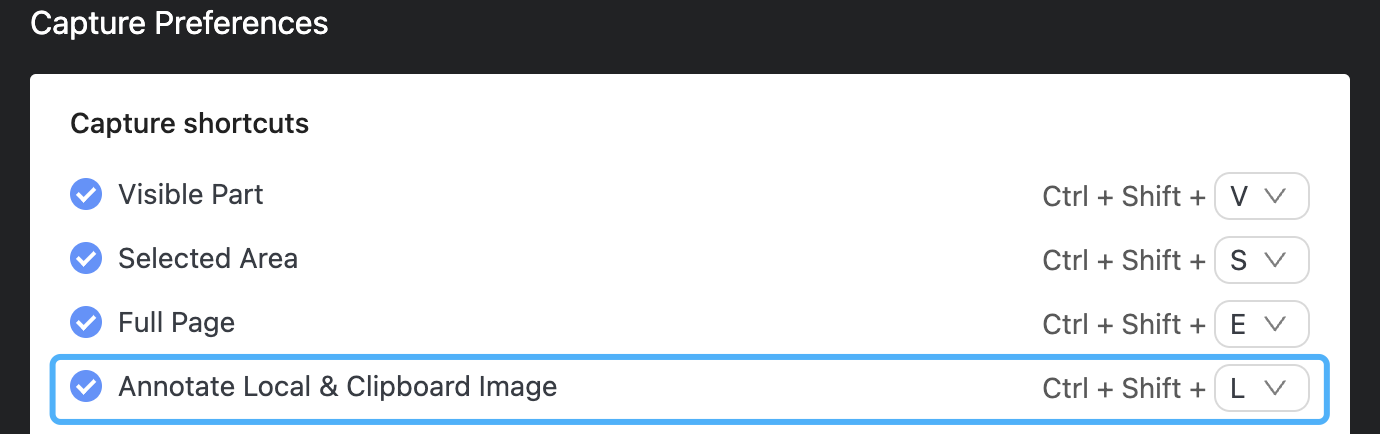
You can customize keyboard shortcuts if the defaults don’t work. Currently, custom shortcuts work on regular websites (http/https) but not on Chrome’s internal pages (chrome://). If a custom shortcut still doesn’t work, it may conflict with another program – try setting a different combination again.
4. Customizable Date/Time Format
If you save screenshots to Local (your computer), you can set date and time formats according to your regional preferences.
- Date formats: Month/Day/Year, Year/Month/Day, Day/Month/Year
- Time formats: 24-hour, 12-hour AM/PM

Upcoming versions will introduce more features to simplify the capturing process.
 Awesome Screenshot Blog
Awesome! It is the best tool of tools.
LikeLiked by 1 person
good
LikeLike
great tool
LikeLiked by 1 person
Great work. This app is so useful for me. Thanks for the amazing updates
LikeLiked by 1 person
Espectacular sencillez con un manejo muy intuitivo y práctico.
LikeLiked by 1 person
Great application.This app is very useful for me. Thanks for the amazing updates
LikeLike
Perfect
LikeLike
Good Job Thank you so much
LikeLike