
Awesome Screenshot launched a series of changes in the new version 4.4.24 to help you streamline your workflow.
1. Save Screenshots Directly to Your Computer, No Need to Manually Click “Download”.
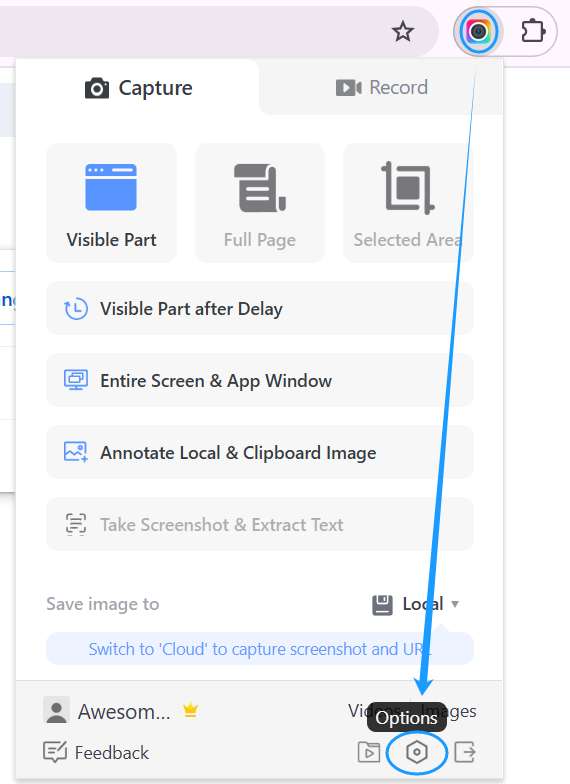
Please enable “Auto-download screenshots” in Options of the Awesome Screenshot Chrome extension.
You can specify a subfolder within Downloads for saving screenshots. If not specified, screenshots will be saved to the Downloads folder. You’ll need to grant download management permissions when prompted. You can also save screenshots to your desired folder, which is not under Downloads.
The option of “Ask where to save each file before downloading” is enabled by default, allowing users to choose a different folder for screenshots instead of the Downloads folder or the specified default. To save screenshots to a designated folder more quickly, you can disable this option.

Video demonstration: https://www.youtube.com/watch?v=lZlbDZd5x-A
Related FAQ: Why disabling “Ask where to save each file before downloading” cannot work
2. Cloud Sharing Automation
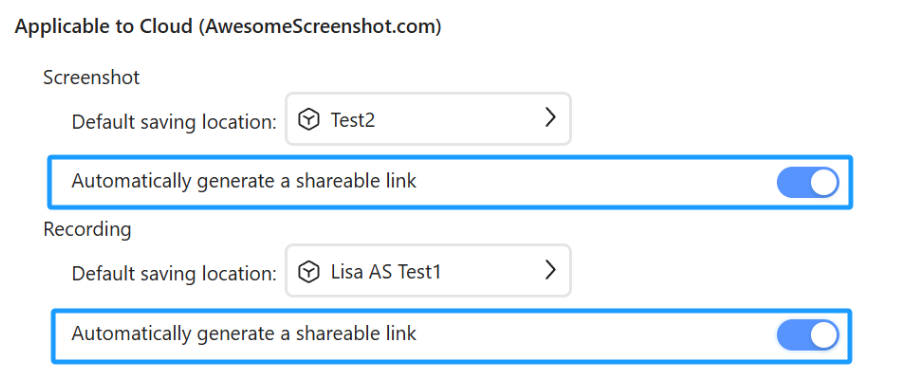
Enable “Automatically generate a shareable link” to instantly share your recordings and screenshots. You can also set a default storage location for items saved to AwesomeScreenshot.com cloud, eliminating the need to manually move them from My Items.
3. Quick Access Shortcuts
“I’m constantly using the ‘Annotate Local & Clipboard Image’ function and being able to access it with a keyboard shortcut would greatly improve my workflow.”
The new keyboard shortcut combination for Annotate Local & Clipboard Image:
- Default: Ctrl+Shift+L
- Customizable in Options > Capture Preferences
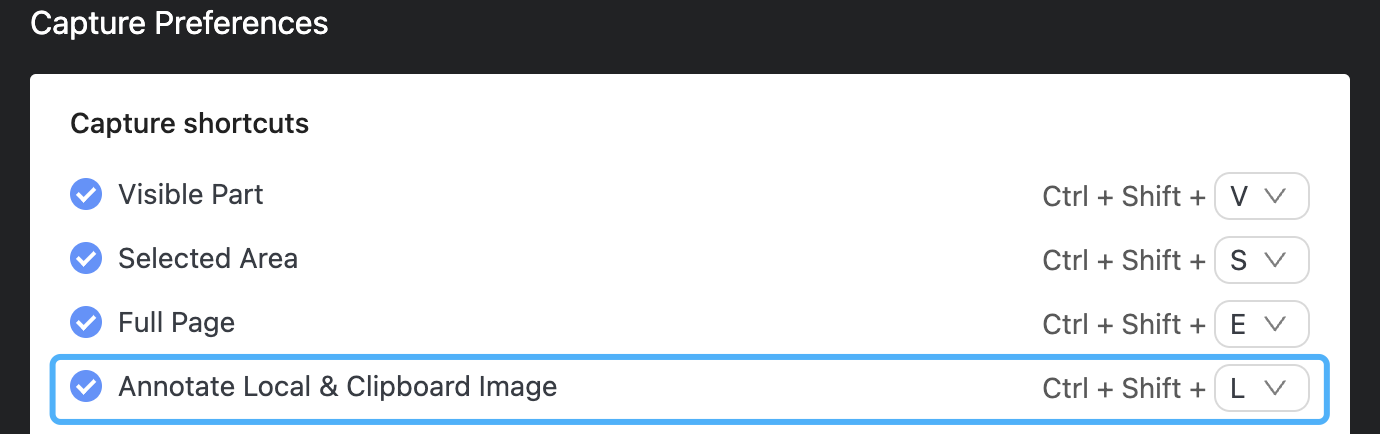
You can customize keyboard shortcuts if the defaults don’t work. Currently, custom shortcuts work on regular websites (http/https) but not on Chrome’s internal pages (chrome://). If a custom shortcut still doesn’t work, it may conflict with another program – try setting a different combination again.
4. Customizable Date/Time Format
If you save screenshots to Local (your computer), you can set date and time formats according to your regional preferences.
- Date formats: Month/Day/Year, Year/Month/Day, Day/Month/Year
- Time formats: 24-hour, 12-hour AM/PM

Upcoming versions will introduce more features to simplify the capturing process.
 Awesome Screenshot Blog
thank you very much… this app is very helpful.
LikeLiked by 1 person
Cool i will definitely use this app more often Thank you😊
LikeLiked by 1 person
Get screenshot done QUICKLY
LikeLike
I have this app since in a while and I use it regularly. I love it, so convenient!
LikeLiked by 1 person
Veri usefull
LikeLiked by 1 person
Perfect
LikeLiked by 1 person
Your app is the best! I’ve been using it for what, 10 years now? It’s always been working perfectly (the only… hickup was when Chrome had done some major updates and I had to wait one or two days max to see AwesomeScreenShot run smoothly again). You’re essential and relentless! Grazie ragazzi
LikeLiked by 1 person
NICE
LikeLiked by 1 person
😍 LOvE tHiS ApP
LikeLiked by 1 person
do you really mean that or are you capping.
LikeLiked by 1 person
على العموم برنامج هاءل وفعال شكرا لكم
LikeLiked by 1 person
how to make this extension smooth for record mode ?
LikeLiked by 1 person
Currently, you can set shortcuts to streamline recording. 1. Please go to Options > Record Preferences > Recording shortcuts in our extension. 2. Set by opening this URL chrome://extensions/shortcuts in your Chrome browser.
If you have additional needs or feedback, please provide details through the Feedback option in the product you are currently using.
LikeLiked by 1 person
This is by far the best chrome extension I’ve used. AND ITS FREE
LikeLiked by 1 person
Congratulations, great App!!! Thanks so much!
LikeLiked by 1 person
I am thoroughly impressed with the Awesome Screenshot plugin for Chrome! It’s incredibly user-friendly and efficient. Capturing and editing screenshots has never been easier.
LikeLiked by 1 person
I am thoroughly impressed with the Awesome Screenshot plugin for Chrome! It’s incredibly user-friendly and efficient. Capturing and editing screenshots has never been easier. Highly recommended for anyone looking to streamline their workflow with quality results!
LikeLike
Thank you for adding the screenshot saver! That saves a ton of clicks, and also allows me to remove the screenshots from my downloads much quicker, since I now put them all in one separate folder. Great add to your app, I brag about it to all my friends.
LikeLiked by 1 person
awesome and great App, thanks
LikeLiked by 1 person
Amazing! Thank you 🙂
LikeLiked by 1 person
These comments are all literally fake! like am I right?!
LikeLiked by 1 person
Love your app, it’s so great, it’s so user-friendly, I use it all the time and not only that you just made it easier and even less clicks required!
What a service to the digital world!!
LikeLiked by 1 person
Wow this is great
LikeLiked by 1 person
Thank you for such a great app and for these new awesome features!
LikeLiked by 1 person
This is the best App!
LikeLiked by 1 person
I really don’t see a need for this. Every computer has its own screenshot and screen recording function that are much easier to use and down require a download.
LikeLike
Thank you so much for this app. I have used it for years.
LikeLiked by 1 person
this is good that a new feature is their awesome screenshot
LikeLiked by 1 person
you can find more features to here I wish I do not need to sigh in though
LikeLike
you are great guys but you’re videos are the best
LikeLike
this is probably a personal issue but whenever I try to record games it locks my mouse so I can only look in a certain area other wise great extension
LikeLiked by 1 person
Could you provide details via Feedback of the product you are currently using for our investigation?
LikeLike
I am thoroughly impressed with the Awesome Screenshot plugin for Chrome! It’s incredibly user-friendly and efficient. Capturing and editing screenshots has never been easier
LikeLiked by 1 person
Is there a way to take screenshot of visible part and just copy to clipboard immediately, without opening a new tab?
LikeLiked by 1 person
Yes, there is a way. Please select to save screenshots to Cloud and you’ll be able to copy screenshots to your clipboard without opening a new tab.
LikeLike
Is it possible to do this in ‘save to local’ mode?
LikeLiked by 1 person
“Auto-download screenshots” is “Applicable to Local”.
LikeLiked by 1 person
Wow. That’s Great!
LikeLiked by 1 person
That is good news
LikeLiked by 1 person
Outstanding Experiance.
LikeLiked by 1 person
BEST APP EVER to grab full screen shots. I love it, use it, and extoll its virtues to others.
LikeLiked by 1 person
Thank you for this nice app.I am using it for quite sometime and will try the new features.
LikeLiked by 1 person
wow I never knew.
LikeLiked by 1 person
Thanks, all the time!
LikeLiked by 1 person
How to save as PDF?
LikeLiked by 1 person
Related instruction:
https://support.awesomescreenshot.com/hc/en-us/articles/38678093043993-How-to-download-or-save-a-screenshot-as-PDF
LikeLike
Una extensión muy útil y fácil de usar. Sin fallos. Recomendada.
LikeLiked by 1 person
Best app ever. Thanks a tons.
LikeLiked by 1 person
Dudes this is LIT!!!
LikeLiked by 1 person
okas
LikeLiked by 1 person
FANTASTIC APP
LikeLiked by 1 person
How about printing directly from the Copy or the Save?
LikeLiked by 1 person
Thank you for your suggestion. If you save screenshots to our Cloud, you can click More beside the screenshot and select Print. If you save screenshots to Local and do not enable “Auto-download screenshots”, you can find the Print option beside the screenshot after it is captured.
The feedback/suggestions will be gathered and shared with our product development team.
LikeLiked by 1 person
How about printing directly from Copy or Save?
LikeLike
nice
LikeLiked by 1 person
thanks its relly cool
LikeLiked by 1 person
“The app is good” just that I think all these comments are fake lol XD.
LikeLiked by 1 person
well
LikeLike
really the best
LikeLiked by 1 person